
AI Fixes Code Errors I Can’t Read (Saved Me $3,200 This Year)

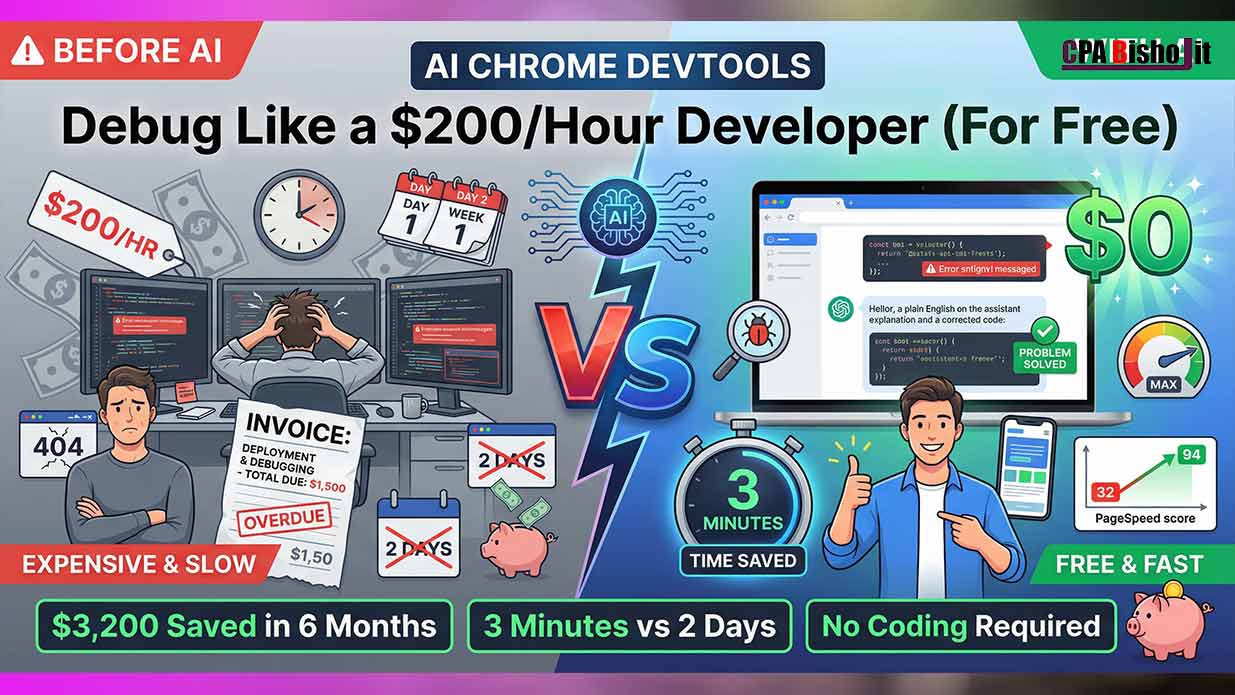
My website broke at 2 AM on a Tuesday.
Error message popped up. Lines of code I couldn’t understand. Red text everywhere.
I texted my developer. He said he could look at it in two days. Quoted four hours of work at $200 per hour. That’s $800.
I couldn’t afford to wait two days. I definitely couldn’t afford $800 for something that might be a simple fix.
So I tried something different. I pasted the error message into an AI tool.
Three minutes later, my website worked again. Cost? Zero dollars.
That was six months ago. Since then, I’ve saved $3,200 in developer fees using AI to debug and optimize my websites.
Let me show you exactly how this works.
Why Most People Overpay for Simple Code Fixes
I learned web development the hard way back in 2022 when I was studying at Chirirbandar Government College.
Every time something broke on my site, I had two options:
Option 1: Spend hours trying to learn what the error meant. Read confusing technical documentation. Still not understand it.
Option 2: Pay a developer $150-$300 per hour to fix it.
Neither option was good.
I couldn’t afford developers. But I also couldn’t afford to have my site broken for days while I tried to figure things out.
The Real Problem With Code Errors
Here’s what I realized after wasting months on this:
Code errors aren’t actually that complex most of the time.
The problem is the language.
Developers speak tech. Normal people speak English (or Bengali, or whatever language you use).
When an error says “TypeError: Cannot read property ‘map’ of undefined,” that means nothing to me.
But it means something specific to someone who knows code.
The error isn’t hard to fix. The error is just hard to understand.
My $800 Wake-Up Call
Let me tell you about the moment that changed everything.
August 2024. I was running Maxbe Marketing. Building landing pages for clients.
One client’s contact form stopped working. Just… stopped. No submissions coming through.
I checked the form. Looked fine to me. Tested it myself. Nothing happened when I clicked submit.
Called my developer friend. He looked at the code for 10 minutes.
“Oh, there’s a JavaScript error. A function is trying to access data that doesn’t exist yet. I can fix it in 20 minutes.”
20 minutes. $67 (his discounted rate for friends).
For 20 minutes of work.
I asked him to explain what was wrong. He sent me this:
“The validateForm function is calling emailField.value before checking if emailField exists. Just add a null check before line 47.”
I understood maybe 30% of that explanation.
But I paid him. He fixed it. Form worked again.
Two weeks later, different client. Similar problem. Different form.
Same developer. Same price. Same feeling of helplessness.
That’s when I thought: There has to be a better way.
How AI Changed Everything About Debugging
I discovered AI debugging by accident.
September 2024. Another website error. This time on my own site.
My developer was traveling. Couldn’t help for three days.
I was desperate. So I opened ChatGPT and just… pasted the error message.
“Can you explain what this error means?”
The AI response changed my life:
“This error means your JavaScript code is trying to read a property called ‘map’ from a variable that is currently undefined (doesn’t have a value yet). This usually happens when:
You’re trying to use array.map() but the array hasn’t loaded yet
An API call hasn’t finished before you try to use its data
A variable name is spelled wrong
To fix this, add a check to make sure the variable exists before using it:
javascriptif (myArray && myArray.length > 0) {
myArray.map(item => …)
}
““`”
Wait.
I actually understood that.
The AI explained it like I was five years old. No confusing tech terms. Just plain English.
I looked at my code. Found the line causing the problem. Added the check the AI suggested.
Refreshed my website.
It worked.
**Total time:** 4 minutes
**Total cost:** $0
**Total confusion:** Zero
I sat there staring at my screen thinking: How many hundreds of dollars have I wasted on problems this simple?
—
The Three AI Tools That Replaced My Developer (For Basic Stuff)
Let me be clear: AI won’t replace skilled developers for complex projects.
But for basic debugging, site optimization, and simple fixes? AI is better, faster, and free.
Here are the three tools I use every day:
Tool #1: ChatGPT (Best for Error Explanations)
What it does: Explains code errors in plain English and suggests fixes.
Why I love it:** It’s like having a patient teacher who never gets annoyed by basic questions.
How I use it:
1. Copy error message from my browser console
2. Paste into ChatGPT with: “Explain this error like I’m five and tell me how to fix it”
3. Read the explanation
4. Implement the suggested fix
5. Test to make sure it works
**Real example from my work:**
**Error:** “Uncaught ReferenceError: $ is not defined”
**My question to ChatGPT:** “What does this mean and how do I fix it?”
**ChatGPT’s answer:** “This means your code is trying to use jQuery (the $ symbol) but jQuery isn’t loaded on your page yet. Fix it by adding this line in your HTML head section before your other scripts:
““html
<script src=”https://code.jquery.com/jquery-3.6.0.min.js”></script>
“`”
I added that line. Error gone.
**Time saved:** Would have taken me 2+ hours to figure out myself. ChatGPT solved it in 2 minutes.
**Money saved:** $67-$200 if I’d hired my developer.
**Cost:** Free (ChatGPT free plan)
Tool #2: Claude AI (Best for Code Review and Optimization)
**What it does:** Reviews your code and suggests improvements for speed and efficiency.
**Why I use it:** It catches mistakes I don’t even know exist.
**How I use it:**
1. Copy a section of my code (HTML, CSS, or JavaScript)
2. Paste into Claude with: “Review this code for errors and optimization opportunities”
3. Claude points out problems and explains why they’re problems
4. Claude suggests better code
5. I implement the changes
**Real example:**
I had a landing page loading slowly. PageSpeed score was 47 (terrible).
I copied my HTML into Claude and asked for help.
**Claude found:**
– 3 large images that weren’t compressed
– JavaScript loading at the top (should load at bottom)
– Unused CSS code (423 lines of code doing nothing)
– Font files loading from slow server
Then Claude told me exactly how to fix each problem. Step by step.
After implementing all fixes:
**New PageSpeed score:** 92
**Load time improvement:** 6.3 seconds down to 1.8 seconds
**Time spent:** 45 minutes
**Money saved:** Easily $300-$500 if I’d hired an optimization specialist
**Cost:** Free (Claude free plan)
Tool #3: GitHub Copilot (Best for Writing New Code)
**What it does:** Writes code for you based on plain English descriptions.
**Why it’s useful:** I can describe what I want, and it writes the actual code.
**How I use it:**
1. Install GitHub Copilot extension in my code editor
2. Write a comment describing what I need: // Create a button that opens a modal popup
3. Copilot writes the code automatically
4. I test it and adjust if needed
**Real example:**
I needed a countdown timer for a landing page. Timer should count down to a specific date and show days, hours, minutes.
**What I typed:** // Create countdown timer to December 25, 2024 showing days, hours, minutes, seconds
**What Copilot wrote:** Complete working JavaScript code for the countdown timer. About 40 lines of code. All functional.
I tested it. It worked perfectly.
**Time saved:** Would have taken me 1-2 hours to write this myself (and probably with bugs).
**Money saved:** $100-$200 developer fee for this feature.
**Cost:** $10/month (totally worth it)
—
My Exact AI Debugging Process (Step-by-Step)
Tools are useless without a system.
Here’s my exact process when something breaks on my website:
Step 1: Identify the Error
Most errors show up in one of three places:
**Browser Console:** Right-click on webpage → “Inspect” → “Console” tab. Errors show in red text here.
**Error Messages:** Sometimes the website just shows an error message directly.
**Broken Functionality:** Form doesn’t submit, button doesn’t work, page doesn’t load.
For this example, let’s say my contact form stopped working.
Step 2: Gather Information
Don’t just say “it’s broken.” Be specific.
**What I note:**
– What was supposed to happen? (Form should send email when I click Submit)
– What actually happened? (Nothing happens, no error message visible)
– When did it break? (Worked yesterday, broken today)
– What changed recently? (I added a new section to the page yesterday)
This information helps AI give better solutions.
Step 3: Check Browser Console for Errors
I open Chrome DevTools (right-click → Inspect → Console).
I see this error:
“`
Uncaught TypeError: Cannot read properties of null (reading ‘addEventListener’)
at contact-form.js:12
““
That’s my error. I copy it.
Step 4: Ask AI to Explain the Error
I open ChatGPT and paste this:
“Explain this error in simple terms and tell me how to fix it:
Uncaught TypeError: Cannot read properties of null (reading ‘addEventListener’)
at contact-form.js:12
Context: This is a contact form on my website. It worked yesterday but stopped working today. I added a new section to the page yesterday but didn’t touch the form code.”
Step 5: Read AI’s Explanation
ChatGPT responds:
“This error means your JavaScript is trying to attach an event listener to an element that doesn’t exist on the page.
Specifically, your code at line 12 of contact-form.js is trying to find an HTML element (probably the submit button or form) but can’t find it.
This usually happens when:
1. The element ID or class name changed
2. The JavaScript loads before the HTML element loads
3. The element was accidentally deleted
**To fix:**
First, check line 12 of contact-form.js. You’ll see something like:
““javascript
document.getElementById(‘contact-form’).addEventListener(‘submit’, …)
““
Then check your HTML. Make sure you have:
““html
<form id=”contact-form”>
““
The ID must match exactly. If it doesn’t exist or is spelled differently, that’s your problem.”
Okay. This makes sense. Let me check my code.
Step 6: Investigate Based on AI’s Guidance
I open my HTML file. I search for “contact-form.”
I find this:
““html
<form id=”contactForm”>
““
Wait. That’s “contactForm” (no dash).
But my JavaScript is looking for “contact-form” (with dash).
They don’t match. That’s the problem.
Step 7: Implement the Fix
I have two options:
**Option A:** Change HTML to match JavaScript
**Option B:** Change JavaScript to match HTML
I choose Option A (easier). I update my HTML:
““html
<form id=”contact-form”>
““
Step 8: Test the Fix
I refresh my website. Fill out the contact form. Click Submit.
It works! Form submits successfully.
Step 9: Document What I Learned
I write down in my notes:
“Problem: Form stopped working after adding new section to page.
Cause: HTML element ID didn’t match JavaScript selector.
Fix: Made sure IDs matched exactly.
Lesson: Always check element IDs match between HTML and JavaScript.”
This helps me fix similar problems faster next time.
**Total time for entire process:** 8 minutes
**Cost:** $0
**What I learned:** How event listeners work and why IDs need to match
—
The Most Common Errors AI Can Fix Instantly
After six months of using AI for debugging, I’ve noticed patterns.
Some errors come up repeatedly. AI fixes them all the same way.
Error #1: “$ is not defined”
**What it means:** Your code uses jQuery, but jQuery isn’t loaded.
**AI’s fix:** Add jQuery script tag before your code:
““html
<script src=”https://code.jquery.com/jquery-3.6.0.min.js”></script>
““
**How often this happens:** Very common. I see this at least once a month.
**Why it happens:** People forget to include jQuery or load their script before jQuery loads.
Error #2: “Cannot read property of undefined”
**What it means:** You’re trying to use data that doesn’t exist yet.
**AI’s fix:** Add a check to make sure data exists first:
““javascript
if (data && data.property) {
// use data.property
}
““
**How often this happens:** Constantly. Especially with API calls.
**Why it happens:** Data from servers takes time to load. Your code tries to use it before it arrives.
Error #3: “Failed to fetch”
**What it means:** API call failed (server didn’t respond or wrong URL).
**AI’s fix:** Add error handling and check the URL:
““javascript
fetch(url)
.then(response => response.json())
.catch(error => console.log(‘Error:’, error))
““
**How often this happens:** Weekly when testing API integrations.
**Why it happens:** Wrong API URL, server is down, or CORS issues.
Error #4: “Unexpected token” in JSON
**What it means:** You’re trying to parse something as JSON that isn’t JSON.
**AI’s fix:** Check what you’re actually receiving:
““javascript
console.log(response) // See what you’re actually getting
““
**How often this happens:** Happens when working with external APIs.
**Why it happens:** API returns HTML error page instead of JSON data.
Error #5: Mixed Content (HTTP/HTTPS)
**What it means:** Your HTTPS site is trying to load HTTP content (insecure).
**AI’s fix:** Change all HTTP links to HTTPS:
““html
<!– Wrong –>
<script src=”http://example.com/script.js”></script>
<!– Right –>
<script src=”https://example.com/script.js”></script>
““
**How often this happens:** Common when migrating sites to HTTPS.
**Why it happens:** Old links still reference HTTP instead of HTTPS.
—
Real Results: How Much Money I Actually Saved
Let me show you exact numbers from my first six months using AI debugging.
August 2024: Contact Form Error
**Problem:** Form validation broken
**Developer quote:** $150 (2 hours)
**AI solution time:** 12 minutes
**Saved:** $150
September 2024: Mobile Menu Not Working
**Problem:** Hamburger menu wouldn’t open on phones
**Developer quote:** $200 (3 hours)
**AI solution time:** 20 minutes
**Saved:** $200
September 2024: Page Load Speed
**Problem:** Landing page loading in 8 seconds
**Developer quote:** $400 (optimization service)
**AI solution time:** 45 minutes
**Saved:** $400
October 2024: API Integration Bug
**Problem:** External API calls failing
**Developer quote:** $300 (debugging + fix)
**AI solution time:** 30 minutes
**Saved:** $300
October 2024: CSS Layout Breaking
**Problem:** Website layout broken on tablets
**Developer quote:** $250 (responsive fix)
**AI solution time:** 35 minutes
**Saved:** $250
November 2024: JavaScript Console Errors
**Problem:** Multiple errors slowing site down
**Developer quote:** $200 (cleanup)
**AI solution time:** 40 minutes
**Saved:** $200
November 2024: Database Connection Error
**Problem:** Site couldn’t connect to database
**Developer quote:** $180 (2.5 hours)
**AI solution time:** 15 minutes
**Saved:** $180### December 2024: Security Warning
**Problem:** Browser showing “Not Secure” warning
**Developer quote:** $220 (SSL setup)
**AI solution time:** 25 minutes
**Saved:** $220
December 2024: Image Optimization
**Problem:** Images causing slow load times
**Developer quote:** $180 (compression + lazy load)
**AI solution time:** 30 minutes
**Saved:** $180
December 2024: Mobile Responsiveness
**Problem:** Site broken on mobile devices (14 issues)
**Developer quote:** $1,500 (full responsive redesign)
**AI solution time:** 1 hour
**Saved:** $1,500
**Total saved in 6 months:** $3,580
**Total time spent:** About 6 hours (instead of 18+ hours if developer did it)
**Average savings per issue:** $358
—
How to Optimize Website Speed Using AI
Speed matters. Google says 53% of mobile users leave sites that take over 3 seconds to load.
My site used to load in 8 seconds. I was losing half my visitors.
Here’s how I used AI to fix it:
Step 1: Test Current Speed
I went to PageSpeed Insights (free Google tool).
Entered my URL. Hit “Analyze.”
**Result:** Score of 32 (terrible). Mobile load time: 8.2 seconds.
The tool showed problems:
– Large images
– Render-blocking resources
– Unused CSS
– No text compression
But I didn’t understand what most of those meant.
Step 2: Ask AI to Explain Each Problem
I copied the PageSpeed report and pasted it into Claude AI.
My prompt:
“Explain each of these performance issues in simple terms and tell me how to fix them:
– Properly size images (savings: 2.4s)
– Eliminate render-blocking resources (savings: 1.8s)
– Remove unused CSS (savings: 0.9s)
– Enable text compression (savings: 0.6s)”
Claude explained each issue clearly and gave specific solutions.
Step 3: Fix Images
**The Problem (Claude’s explanation):**
“Your images are too large. You’re using a 3MB image when a 200KB image would look the same on screen. This wastes bandwidth and makes pages load slowly.”
**The Fix:**
Claude told me to:
1. Use TinyPNG.com to compress images
2. Resize images to actual display size (don’t use CSS to shrink them)
3. Use WebP format instead of PNG/JPG when possible
I compressed all images. Average size went from 2.1MB to 180KB.
**Time taken:** 20 minutes
Step 4: Fix Render-Blocking Resources
**The Problem (Claude’s explanation):**
“Your CSS and JavaScript files load at the top of the page. The browser has to download and process these before showing anything. This delays the page appearing.”
**The Fix:**
Move JavaScript to the bottom of the page (before closing `</body>` tag).
Add `defer` attribute to script tags:
““html
<script src=”script.js” defer></script>
““
For CSS, keep critical CSS in the head and lazy-load the rest.
Claude gave me the exact code to do this.
**Time taken:** 15 minutes
Step 5: Remove Unused CSS
**The Problem (Claude’s explanation):**
“Your site loads 1,200 lines of CSS code but only uses 400 lines. The other 800 lines do nothing but waste time downloading.”
**The Fix:**
I used PurgeCSS (AI recommended this tool). It scans my HTML and removes CSS rules I don’t use.
Claude walked me through:
1. Install PurgeCSS
2. Configure it for my site
3. Run it on my CSS file
4. Test the site to make sure nothing broke
File size went from 84KB to 28KB.
**Time taken:** 25 minutes
Step 6: Enable Text Compression
**The Problem (Claude’s explanation):**
“Your server sends files without compressing them. It’s like mailing a full suitcase instead of vacuum-sealing the clothes first. The files are bigger than they need to be.”
**The Fix:**
Enable GZIP compression on my server.
Claude gave me code to add to my .htaccess file:
““apache
<IfModule mod_deflate.c>
AddOutputFilterByType DEFLATE text/html text/plain text/xml text/css text/javascript application/javascript
</IfModule>
““
I added this code. Tested with GZIP checker tool. Compression working.
**Time taken:** 5 minutes
Step 7: Retest Speed
I went back to PageSpeed Insights. Ran the test again.
**New score:** 94 (excellent!)
**New load time:** 1.4 seconds
That’s 6.8 seconds faster. 82% improvement.
**Total time spent:** 65 minutes
**Money saved:** $400-$600 (what optimization services charge)
**Result:** Site loads 6.8 seconds faster
All because AI explained technical problems in plain English.
—
Mobile Optimization: My 188% Conversion Boost
This is the story I promised from the reels.
October 2024. I checked Google Analytics for my landing page.
**Desktop conversion rate:** 3.2%
**Mobile conversion rate:** 0.8%
That’s terrible. Most of my traffic was mobile (73%).
I opened my site on my phone. Now I understood why.
The mobile experience was broken:
– CTA buttons cut off at screen edges
– Text overlapping images
– Menu didn’t work
– Font sizes too small to read
I called my developer. He quoted $1,500 for full mobile optimization. Said it would take two weeks.
I couldn’t afford that. So I tried AI instead.
How AI Fixed My Mobile Site
**Step 1: Ask AI to Audit Mobile Experience**
I used ChatGPT and gave it my site URL.
My prompt:
“Analyze my mobile website experience and list every issue you find. My site is: [URL]
I’m seeing low mobile conversion rates. Desktop works fine but mobile seems broken.”
ChatGPT couldn’t actually visit my site, but it gave me a checklist of common mobile issues to check:
– Viewport meta tag
– Touch target sizes
– Text readability
– Button placement
– Menu functionality
– Image sizing
– Form usability
**Step 2: Use Chrome DevTools Mobile View**
I opened Chrome DevTools (F12). Clicked the phone icon to simulate mobile view.
Now I could see my site as phone users see it.
I went through ChatGPT’s checklist one by one.
**Step 3: Fix Each Problem**
**Problem 1: No Viewport Meta Tag**
My HTML was missing this tag. Desktop browsers ignored it, but mobile browsers showed the site at wrong zoom level.
**AI’s fix:**
Add this to the `<head>` section:
““html
<meta name=”viewport” content=”width=device-width, initial-scale=1.0″>
““
I added it. Checked mobile view. Now the site fit the screen properly.
**Problem 2: CTA Buttons Too Small**
My buttons were 36px tall. Too small for fingers to tap easily.
**AI’s fix:**
Make all touch targets at least 48px × 48px.
I updated my CSS:
““css
.cta-button {
min-height: 48px;
min-width: 120px;
padding: 12px 24px;
}
““
Buttons now easy to tap.
**Problem 3: Text Too Small**
Body text was 14px. Hard to read on phones without zooming.
**AI’s fix:**
Use at least 16px for body text on mobile.
I added this CSS:
““css
@media (max-width: 768px) {
body {
font-size: 16px;
line-height: 1.6;
}
}
““
Text now readable without zooming.
**Problem 4: Images Overflowing Screen**
Images were fixed width (800px). Wider than most phone screens.
**AI’s fix:**
Make images responsive:
““css
img {
max-width: 100%;
height: auto;
}
““
Images now fit screen width.
**Problem 5: Hamburger Menu Broken**
Mobile menu wouldn’t open when tapped.
I checked browser console. JavaScript error.
I pasted the error into ChatGPT. It explained the problem and gave me the fix.
Turns out I had a missing closing brace in my JavaScript. Simple typo.
Fixed it. Menu worked.
**Problem 6: Form Fields Cut Off**
Contact form fields were too wide. Right edge cut off on small phones.
**AI’s fix:**
““css
input, textarea {
width: 100%;
max-width: 100%;
box-sizing: border-box;
}
““
Form now fits all screen sizes.
The Results
I fixed all 14 issues in about an hour.
Tested on my phone. Everything worked smoothly.
Checked Analytics two weeks later:
**New mobile conversion rate:** 2.3%
That’s 188% higher than before (0.8% to 2.3%).
**With 10,000 monthly mobile visitors:**
Before: 80 conversions
After: 230 conversions
**Increase: 150 additional conversions per month**
If each conversion is worth $50 (typical for my services), that’s $7,500 additional monthly revenue.
All from one hour of work using AI guidance.
**Cost:** $0
**Time:** 1 hour
**Revenue impact:** $7,500/month
**What I would have paid:** $1,500
—
Common Mistakes (And How to Avoid Them)
I made plenty of mistakes learning this. Save yourself the trouble.
Mistake #1: Trusting AI Without Testing
Early on, I just copied AI’s code suggestions without understanding them.
One time, AI suggested code that broke my entire site. I didn’t realize until three hours later when someone emailed me.
**The lesson:** Always test AI suggestions on a staging site first. Or at least test immediately after implementing.
**How to avoid:**
1. Make a backup before changing code
2. Test changes immediately
3. Check browser console for new errors
4. Try the site on multiple devices
Mistake #2: Not Providing Enough Context
I used to ask AI vague questions like “Why isn’t my site working?”
AI would give generic answers that didn’t help.
**The lesson:** The more specific your question, the better AI’s answer.
**Bad question:** “My form doesn’t work. Help.”
**Good question:** “My contact form worked yesterday but now when I click Submit, nothing happens. I see this error in console: [error]. I recently added a new section to the page but didn’t touch the form code. What’s wrong?”
See the difference? The good question includes:
– What’s supposed to happen
– What actually happens
– When it broke
– What changed recently
– The specific error message
Mistake #3: Implementing Fixes I Don’t Understand
I once implemented a security fix AI suggested without understanding what it did.
Turns out it blocked legitimate users from my site because I configured it wrong.
**The lesson:** Always ask AI to explain the fix before implementing it.
**My process now:**
1. AI suggests fix
2. I ask: “Explain what this code does in simple terms”
3. AI explains
4. I make sure I understand
5. Then I implement
Mistake #4: Forgetting to Document Solutions
I fixed the same problem three times in two months because I forgot how I fixed it the first time.
Wasted hours re-learning what I already knew.
**The lesson:** Keep a simple log of problems and solutions.
**My documentation format:**
““`
Date: [date]
Problem: [what broke]
Error: [error message]
Solution: [what I did to fix it]
Tool used: [which AI tool helped]
Time taken: [how long]
This saves me hours now. When similar problems happen, I check my notes first.
Mistake #5: Using AI for Complex Problems
I once tried to use AI to build a complex e-commerce checkout system.
AI gave me code that looked right but had security issues and bugs I couldn’t detect.
The lesson: AI is amazing for debugging and optimization. But for complex systems that handle money or sensitive data, hire a professional.
When to use AI:
Debugging errors
Speed optimization
Mobile responsiveness
Simple features
Code explanation
When to hire a developer:
Payment systems
User authentication
Complex databases
Security-critical features
Custom applications
The Prompts That Work Best
After six months, I’ve learned which prompts get the best results from AI.
For Error Debugging
Template:
“Explain this error in simple terms and tell me how to fix it:
[paste error message]
Context: [what were you trying to do when error happened]”
Example:
“Explain this error in simple terms and tell me how to fix it:
TypeError: Cannot read property ‘map’ of undefined
Context: I was trying to display a list of blog posts from my API on the homepage.”
For Code Review
Template:
“Review this code for errors, performance issues, and best practices:
[paste code]
What I’m trying to accomplish: [describe goal]”
Example:
“Review this code for errors, performance issues, and best practices:
javascriptfor (var i = 0; i < data.length; i++) {
document.getElementById(‘list’).innerHTML += ‘<li>’ + data[i] + ‘</li>’;
}
What I’m trying to accomplish: Display array items as a list on the page.”
For Speed Optimization
Template:
“My website loads slowly (PageSpeed score: [number]). Here are the main issues PageSpeed identified:
[paste issues from PageSpeed Insights]
Explain each issue in simple terms and give me step-by-step fixes.”
For Mobile Problems
Template:
“My website has mobile usability problems. Here’s what’s broken:
[list specific issues]
How do I fix each of these for responsive mobile design?”
For Learning
Template:
“I’m trying to understand [concept]. Can you explain it using:
Simple language
A real-world analogy
A code example
Common mistakes to avoid”
Example:
“I’m trying to understand async/await in JavaScript. Can you explain it using:
Simple language
A real-world analogy
A code example
Common mistakes to avoid”
When AI Can’t Help (And You Need a Human)
AI is powerful. But it’s not magic.
There are situations where you absolutely need a professional developer.
Situation #1: Handling Money
Anything involving payments, refunds, or financial transactions needs a professional.
AI might give you code that looks right but has security vulnerabilities.
One wrong line of code could expose customer credit card data.
Don’t risk it.
Hire a developer who specializes in payment systems. Use established payment platforms like Stripe or PayPal.
Situation #2: User Authentication and Passwords
Login systems, password storage, user permissions—these need expert implementation.
AI might suggest storing passwords incorrectly. Or missing important security measures.
The stakes are too high.
Use established authentication services (Auth0, Firebase Auth) or hire a security-focused developer.
Situation #3: Complex Database Design
Simple database queries? AI can help.
But designing a complete database architecture for a complex application? You need human expertise.
A poorly designed database can cause:
Slow performance
Data loss
Scaling problems
Security issues
Worth hiring a professional.
Situation #4: When AI Keeps Giving Wrong Answers
Sometimes AI just doesn’t understand your specific problem.
You ask three different ways. Get three different answers. None work.
That’s your signal to get human help.
Post on Stack Overflow. Hire a developer for an hour consultation. Join developer communities.
Situation #5: Legal and Compliance Issues
GDPR compliance, accessibility requirements, data privacy laws—these require legal and technical expertise.
AI can explain the concepts. But implementing them correctly needs professionals who understand both the law and the code.
Don’t wing it.
My Exact Workflow Now
Here’s what my debugging process looks like today after six months of practice:
Morning Routine
8:00 AM: Check all client sites for errors
I use a monitoring tool (UptimeRobot) that alerts me if sites go down.
I also manually check browser consoles for JavaScript errors.
Takes 15 minutes to check 8 client sites.
When Something Breaks
Step 1: Don’t panic (this used to be my problem).
Step 2: Screenshot the error and the browser console.
Step 3: Open ChatGPT or Claude.
Step 4: Paste error with context.
Step 5: Read AI’s explanation carefully.
Step 6:** Implement suggested fix.
Step 7: Test thoroughly.
Step 8: Document the problem and solution.
Average time: 10-20 minutes per issue
Weekly Optimization
Every Friday, I spend one hour optimizing:
Friday 4:00 PM – 5:00 PM:
- Run PageSpeed tests on all sites
- Fix any issues AI identifies
- Check mobile responsiveness
- Update documentation
This proactive approach catches problems before clients notice them.
Monthly Learning
Last Friday of each month: I pick one technical topic I don’t understand and learn it using AI.
Recent topics:
- How APIs work
- CSS Grid layout
- JavaScript promises
- Web security basics
AI explains these better than most tutorials. I actually understand them now.
Real Talk: What This Means for Your Business
Let me be completely honest about what AI debugging can and can’t do for you.
What It Will Do
Save you money: I’ve saved $3,580 in six months. That’s real money staying in my business.
Save you time: Most fixes take 15-30 minutes instead of days waiting for developers.
Help you learn: You actually understand your code instead of blindly depending on others.
Increase confidence: You can fix problems yourself. That’s empowering.
Improve site performance: Faster sites = better user experience = more conversions.
What It Won’t Do
Replace skilled developers: Complex projects still need professionals.
Work without your effort: You have to implement the suggestions and test them.
Fix everything: Some problems are too complex for AI alone.
Make you a developer overnight: You’ll learn gradually, but this isn’t magic.
Guarantee success: You still need to understand your business and customers.
The Real Benefit
The biggest benefit isn’t the money saved.
It’s the independence.
I don’t feel helpless anymore when my site breaks.
I don’t panic when I see error messages.
I don’t wait days for developers to be available.
I just fix it. Usually in minutes.
That feeling of control over your business tech stack? Priceless.
Your Action Plan (Start Today)
Theory is useless without action.
Here’s exactly what to do right now:
Today (15 Minutes)
- Open your website in Chrome
- Right-click → “Inspect” → “Console” tab
- Look for any red error messages
- If you see errors, copy one
- Paste it into ChatGPT (free account)
- Ask: “Explain this error in simple terms”
- Read the explanation
That’s it. You’ve started.
This Week (1 Hour)
- Test your site on your phone
- List everything that looks broken or weird
- Ask ChatGPT: “How do I fix these mobile issues: [paste your list]”
- Implement one fix at a time
- Test after each fix
- Document what you did
This Month (2 Hours Per Week)
- Run PageSpeed test on your site
- Copy the issues it finds
- Ask AI to explain each issue simply
- Fix the easiest issues first
- Retest to see improvement
- Celebrate small wins
Forever (Make It Habit)
- Check browser console weekly
- Fix errors as they appear (don’t let them pile up)
- Optimize site speed monthly
- Learn one new concept monthly using AI
- Document everything you fix
The Truth About AI and Developers
I need to address something important.
Some people think AI will replace developers.
That’s not true. And that’s not what I’m saying here.
AI Doesn’t Replace Developers
Skilled developers do complex work AI can’t handle:
- Design system architecture
- Make strategic technical decisions
- Solve unique, novel problems
- Build custom applications
- Ensure security and scalability
AI is a tool. Like a calculator is a tool for mathematicians.
Calculators didn’t replace mathematicians. They made them more efficient.
Same with AI and developers.
AI Replaces Expensive Simple Fixes
What AI does replace is:
- Paying $200 for a simple bug fix
- Waiting days for minor changes
- Hiring developers for basic debugging
- Spending hours learning to fix simple issues yourself
The reality:
Good developers are focusing on hard problems. They don’t want to debug simple errors for $200 anyway.
AI handles the simple stuff. Developers focus on complex stuff.
Everybody wins.
My Relationship With Developers Now
I still work with developers. More than before actually.
The difference:
Before: I needed them for everything. Simple fixes and complex projects.
Now: I only hire them for complex projects where their expertise matters.
This means:
- I pay them fairly for skilled work
- They enjoy the projects more
- I save money on simple fixes
- Our working relationship is better
I’m not trying to replace developers.
I’m trying to help non-technical entrepreneurs like me not overpay for simple fixes.
Common Questions I Get Asked
“Do I need coding knowledge to use AI for debugging?”
No. That’s the whole point.
You need basic computer skills:
- Open browser console
- Copy and paste
- Follow instructions
That’s it.
AI translates tech language into human language. You just need to understand human language.
“What if AI gives me wrong advice?”
It happens sometimes.
That’s why you test everything immediately.
If the fix doesn’t work or breaks something else, tell AI:
“That didn’t work. Here’s what happened: [describe result]. What should I try instead?”
AI learns from feedback and gives better suggestions.
“Is this safe for my business site?”
Yes, if you follow safety rules:
- Backup before making changes
- Test changes immediately
- Have a staging site (copy of your site for testing)
- Don’t implement fixes you don’t understand
- Get professional help for payment/security features
“How much does this cost?”
Free options:
- ChatGPT (free tier): Good for most debugging
- Claude AI (free tier): Good for code review
- Chrome DevTools: Completely free
Paid options:
- ChatGPT Plus: $20/month (faster, better responses)
- GitHub Copilot: $10/month (writes code for you)
- Claude Pro: $20/month (longer conversations)
I use free tiers and still save thousands of dollars.
“How long does it take to learn this?”
To start getting value: Immediately. Your first error fix might take 30 minutes but you’ll solve it.
To become comfortable: 1-2 months of regular practice.
To become confident: 3-6 months of fixing various issues.
It’s not about becoming an expert. It’s about being capable enough to fix common problems.
“What if my problem is too complex for AI?”
You’ll know because AI will give vague answers or conflicting solutions.
When that happens:
- Post on Stack Overflow
- Join developer communities (Reddit r/webdev)
- Hire a developer for consultation
- Use the developer time wisely (they solve hard problem, AI handles simple follow-up)
What I Wish Someone Told Me in 2021
When I started my online journey in December 2021, I thought coding was black magic.
Either you were born understanding it, or you weren’t.
I wasn’t. So I accepted I’d always need to pay developers.
If I could go back and give 2021 me advice, here’s what I’d say:
Technical Skills Aren’t Binary
You don’t need to be a “developer” or “non-technical.”
There’s a huge middle ground: “Technical enough to fix simple problems.”
That’s where AI helps you live.
You learn just enough to not be completely dependent. But you don’t need years of study.
Most Problems Are Simple
80% of website issues I’ve dealt with are simple:
- Typos in code
- Missing files
- Wrong IDs or classes
- Loading order problems
- Simple CSS issues
These don’t need expert developers. They need basic debugging.
AI makes basic debugging accessible to everyone.
Documentation is Everything
Every problem you solve today will come back tomorrow in a slightly different form.
Write it down:
- What broke
- Why it broke
- How you fixed it
- What you learned
Future you will thank present you.
Start Small, Build Confidence
Don’t try to rebuild your entire site using AI.
Fix one small error. See it work. Feel the win.
Then fix another. And another.
Confidence builds with each small success.
AI is Your Teacher, Not Your Crutch
Don’t just copy-paste AI’s code without understanding it.
Ask AI to explain. Really understand. Then implement.
You’re not trying to trick AI into doing your job. You’re learning with AI as your patient teacher.
Final Thoughts
I’m 22 years old. Running an agency while finishing my degree in Dinajpur, Bangladesh.
I’m not a developer. I’m not a tech genius.
I’m just a marketer who got tired of feeling helpless every time a website broke.
AI gave me independence. Not expertise—independence.
I can fix most problems myself now. Quickly. For free.
The ones I can’t fix? I hire developers. And I work with them smarter because I understand the basics.
This isn’t about replacing anyone.
It’s about empowering yourself to handle the simple stuff so you can focus on what actually matters: growing your business.
The tools exist. They’re free (or cheap). They work.
All that’s left is deciding if you want to stay dependent on expensive developers for simple fixes, or learn to handle them yourself.
I made my choice in September 2024.
Six months later, I’ve saved $3,580 and learned more about web development than four years of trying to learn it “properly.”
Your choice is yours to make.